What Happens Between Save and Sync?
What happens between save and sync? Learn how local changes reach shared storage, why access differs from syncing, and what to check when updates stall.
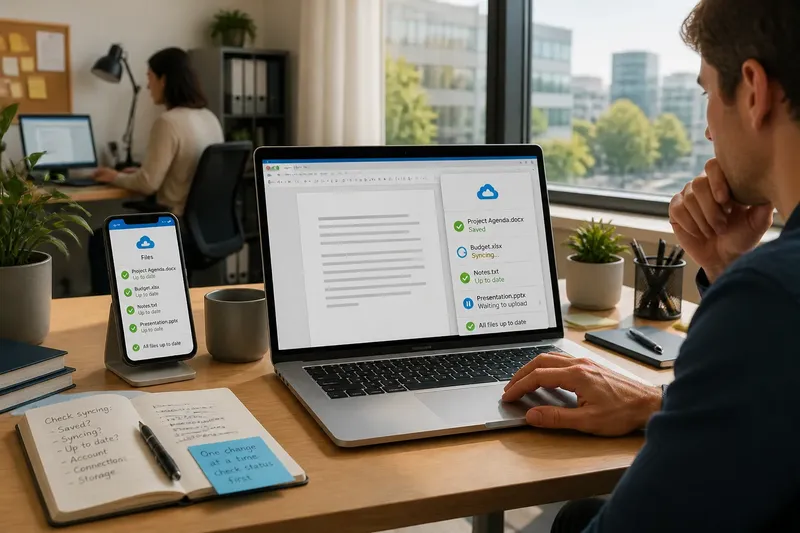
The common mistake with file syncing is treating “Saved” and “Up to date” as the same message. They are not: saving records a change in one place, while syncing carries it elsewhere. Confuse the two and you may close a laptop believing colleagues can see a revision that has not left it.
What happens between save and sync? A file usually moves through several hand-offs: an app writes a change to local storage, a sync service notices it, the service transfers and records it, then other devices receive it. Access determines who may open the shared copy; it does not, by itself, move the latest change.
What does saving do?
Saving asks the application to write its current work to storage. In a desktop app, that may mean updating a file on the computer’s drive. In a browser-based editor, the app may send edits to a service as you work, while still showing a separate status for whether those edits have been stored.
The exact sequence depends on the app. A document can be open with unsaved edits in memory, saved locally but not uploaded, or saved by an online service while another device has yet to receive the update. A cloud-shaped icon does not always mean the same thing across products, so read the surrounding status text.
Saving is the first useful boundary to check. If a document is not saved, there may be no stable change for the sync service to collect. If it is saved, the change may still exist only on that device. Closing the app or shutting the device down before the local save finishes can leave the latest work at risk.
How does syncing carry changes?
A sync client watches a chosen folder or app workspace for changes. When it detects one, it identifies the relevant file and sends information to the service over a network connection. The service updates its stored version or records a new version, then signals other signed-in devices that there is something to receive.
Some tools transfer a whole file; others can send smaller portions or use their own internal change format. Either way, the visible progress indicator is a simplified account of background work. A queued item may be waiting for a connection, a transfer, a service response or a local check. “Syncing” tells you work is in progress, not necessarily which hand-off is pending.
On the receiving device, the sync client checks the service and downloads the changed content. The local copy can then be opened by an app. If that file is already open, the app may refresh it, show a notice, or ask how to handle competing edits. The service and app coordinate, but they are not the same component: one stores and distributes changes, the other presents and edits the document.
Does access mean synced?
No. Access is permission to reach or change a resource; syncing is the transfer and updating of its contents. Someone can have permission to view a shared file while their device is offline, or have a synced local copy that is now out of date. A person may also see a folder but lack permission to edit a particular item inside it.
Think of access as the door and syncing as the delivery route. A door can be open while a new parcel is still travelling. Conversely, a parcel may already be on a device, but the account currently signed in may not be allowed to open it. This distinction helps separate permission errors from transfer delays.
Links, account membership and folder permissions can all affect access. A link may open a web view without placing a file in a device’s synced folders. Adding a shortcut or choosing an offline-access option may behave differently, depending on the service. Do not assume that opening a document once means every device will keep a current local copy.
What can interrupt syncing?
A change can stall before it reaches the service or after the service has received it but before another device updates. The most useful clue is the status shown beside the file, folder or sync client. Look for a pause, queue, sign-in prompt, conflict notice or error message rather than repeatedly editing the document.
- Connection: A weak or unavailable network may leave an upload waiting. Check whether the device is online and whether the app indicates that it is working offline.
- Account: The sync client may be signed out, using a different account, or waiting for renewed access. Confirm the account shown in the app before changing permissions.
- Storage: The service or the device may have too little available space to complete an update. Check the service’s notice and the device’s storage information.
- File state: A file may be open in another app, have an unsupported name or be too large for the service’s rules. Read the exact error before renaming or moving it.
- Service status: A wider interruption can delay updates across devices. If the app provides a service-status notice, use it to distinguish a shared outage from a local issue.
Say you edit a meeting agenda on a laptop during a train journey. The app reports that the file is saved, but the sync client shows it waiting to upload. You reconnect at the office and see the client complete its transfer; only then does a colleague’s device receive the revised agenda. The observable difference is the status moving from saved locally to synced, followed by the update appearing on the other device.
When troubleshooting, change one condition at a time. If you rename the file, move it, switch accounts and restart the app together, you lose the clue that would have explained the delay. A calm check of status and account is often more useful than making another copy.
Why do conflicts appear?
A conflict can arise when two devices change the same file before either has received the other’s update. The service then has to decide how to preserve both versions or ask a person to choose. Some apps merge compatible edits; others create a second file or display a conflict prompt.
For example, one colleague might revise a paragraph offline while another changes that paragraph in the online copy. When both devices reconnect, the two versions may not fit together cleanly. A file labelled as a conflict copy is not necessarily disposable: compare its contents with the main version before deleting or replacing anything.
To reduce confusion, check whether a document is already being edited elsewhere before making a separate offline revision. If a conflict does appear, read the app’s options and preserve the versions until you can tell which edits matter. The right choice depends on the work, not on which copy has the newer-looking filename.
When should I check sync status?
How can I tell whether a file reached the service?
Check the sync client or the document’s status for a completed or up-to-date message. If the app offers a web view, opening the file there can help distinguish a service copy from a local-only change.
Why does one device show an older version?
That device may be offline, paused, signed into another account or still processing the update. Check its sync status and account, then allow the client to finish before editing the older copy.
Can I work offline and sync later?
Often, but the app must support offline editing and have a local copy available. Changes usually wait on that device until it reconnects, and simultaneous edits elsewhere can create a conflict when updates meet.
Does opening a shared file make it available offline?
Not necessarily. Some services keep only a temporary or streamed view, while others let you mark a file for offline use. Check the app’s setting or help text before relying on a local copy without a connection.
What is not worth doing?
Repeatedly pressing Save will not force a stalled upload through a disconnected network. Nor is it useful to copy the file into several folders as a first response; that can leave multiple versions with unclear relationships. Check the status message, account and connection first. Follow the app’s own instructions for a named error, since file limits and conflict handling vary by service.
The simplest mental model is a chain: the app saves a change, the sync service carries it, another device receives it, and access rules decide who can use it. For questions about what happens between save and sync, look for each boundary rather than trusting one reassuring label. Before you leave a device, confirm both that the work is saved and that the service reports the update complete; those are separate checks, and each answers a different question.