Why the Same Document Comes in Different File Types
Why the same document comes in different file types: learn what changes between DOCX, PDF and other formats, and choose the right one for each task.
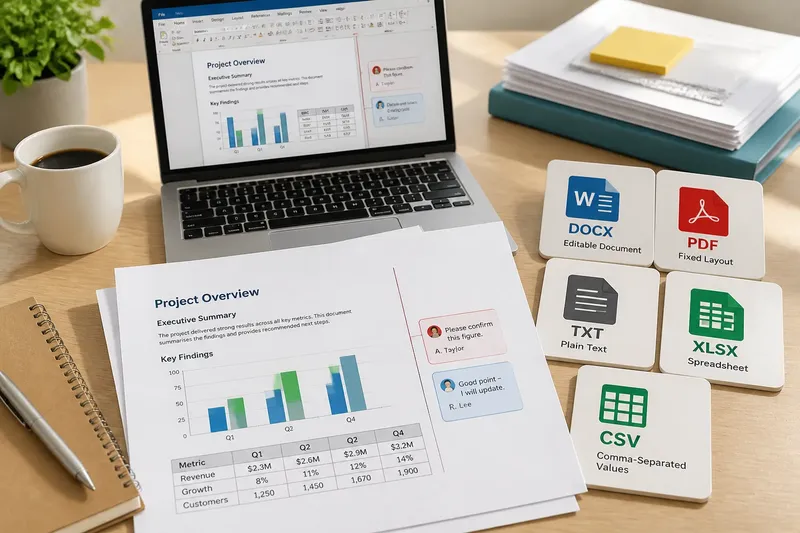
The most common mistake with different file types is treating them as interchangeable containers. Send an editable document as a PDF and a colleague may struggle to revise it; open a complex DOCX in a basic text editor and its layout can collapse into symbols. Knowing what each format preserves helps you diagnose the mismatch before you rebuild the file.
Formats preserve different things
A document file stores more than the words on the screen. It may also contain styles, page breaks, tables, images, comments, revision history, links, fonts and information about how those elements should be displayed. Different formats preserve different combinations of that material.
DOCX, used by Microsoft Word and supported by many other word processors, is designed for editable documents. It can retain paragraphs, headings, tables, tracked changes and other structured content. But the way those elements appear depends partly on the app, available fonts and its interpretation of the file’s layout rules.
PDF is designed to present a page consistently across devices. It usually keeps text and graphics positioned as a finished page, making it useful for forms, handouts and documents that should be read rather than revised. Some PDFs contain selectable text; others are scans made from page images, which can be harder to search or edit.
Plain text files, such as TXT, preserve characters and basic line breaks without the rich layout of a word-processing document. CSV files store rows and columns of data as text separated by delimiters, often commas. Neither format is a substitute for a fully formatted report: conversion can discard features their structure does not support.
When the layout shifts
If a file opens but its pages look different, the cause is often a change in rendering rather than missing words. One app may substitute a font that is unavailable on another device. That can alter line lengths, push paragraphs onto new pages or make a table wider than its page.
Page size, margins, line spacing and printer settings can also affect pagination. A word processor may recalculate these as it opens the file, while a PDF typically keeps the page arrangement fixed. Check the document in its original app, then compare its page size and font choices with the version that looks wrong.
For a small change in appearance, try opening the document in the app it was created in or in a compatible word processor, such as Word or LibreOffice Writer. If the layout must stay stable for sharing, export a PDF and inspect that exported file before sending it. Avoid repeatedly converting the same document between formats: each conversion can introduce another interpretation of its layout.
When content goes missing
Some elements do not transfer because the destination format has nowhere to store them. A PDF export may omit comments or tracked changes unless you choose options that include them. Saving a spreadsheet as CSV typically retains cell values but not formatting, formulas as formulas, multiple sheets or embedded charts.
Check what the file needs to do next. If a colleague must edit comments, preserve the original DOCX or share a copy in a compatible editing app. If they only need to read a clean, stable version, a PDF may be more suitable. For data that must remain structured, keep a spreadsheet format such as XLSX rather than treating CSV as a complete copy.
Say you need to send a report with a chart and unresolved comments to a colleague for revision. Keep a DOCX copy with the comments intact, then make a separate PDF only if they also need a fixed reading version. The colleague can see which file is for editing and which is for reference, while the chart and review notes remain in the format designed to carry them.
When a file will not open?
Why does the file open as unreadable text?
You may be viewing a DOCX or another structured format in an app intended for plain text. Close it without saving, then open the file from Word, LibreOffice Writer or another compatible word processor. Do not rename the extension to TXT; changing the label does not convert the contents.
Why can’t I edit this PDF?
The PDF may contain page images, restrictions or text arranged in a way that resists editing. Look for the original editable file first; if it is a scan, optical character recognition may create searchable text, but it can misread characters and needs checking. For important edits, compare the result with the page image rather than trusting an automatic conversion.
Why did a spreadsheet lose its layout?
CSV keeps tabular text, not the full spreadsheet experience. If the file was saved as CSV, open the original XLSX or equivalent to recover features such as formulas, formatting and additional sheets. If you only have the CSV, check whether rows and columns have been separated correctly before using the data.
Why does the same file look different on another device?
The second app may lack a font, use different page settings or support a feature differently. Check the file in its original application and compare a PDF export when page appearance matters. If the content itself is missing, return to the source file before changing the layout.
Choose the format by task
Before converting, identify whether the recipient needs to edit, review, read or process the document. Then choose a format suited to that job:
- For collaborative editing: use DOCX or the native format of the shared editing app, and confirm that comments or tracked changes are included when needed.
- For a stable page layout: export to PDF and check that text, images and page breaks appear as intended.
- For simple, unformatted text: use TXT when layout and rich styling are unnecessary.
- For rows of data moving between tools: use CSV when a plain table is enough, then check how the receiving app separates fields.
- For a complete spreadsheet: retain XLSX or the spreadsheet app’s native format when formulas, sheets, charts or formatting matter.
It is usually not worth converting a document just to make its extension look familiar. That can remove useful features without solving an app-compatibility problem. Instead, try opening the existing file in software that supports its format, or ask the sender for a copy suited to your task.
Keep the source intact
When a conversion is necessary, work from a copy and keep the original unchanged. Compare the converted file against its source: check headings, tables, page breaks, images, comments and any data fields that matter. If the result is meant for another person, explain which version they should edit and which one is for reference.
The same document comes in different file types because no single format preserves every kind of content in the same way. For a reliable hand-off, choose the format for the next action, inspect what survived, and keep an editable source whenever later changes are likely.